Community Fire
Fire reporting and response
Sign in to view active fires, report a pin location, and manage alerts.
Community Fire
Sign in to view active fires, report a pin location, and manage alerts.
Map standing gates, then deliberately activate the correct approach for an incident or spread.
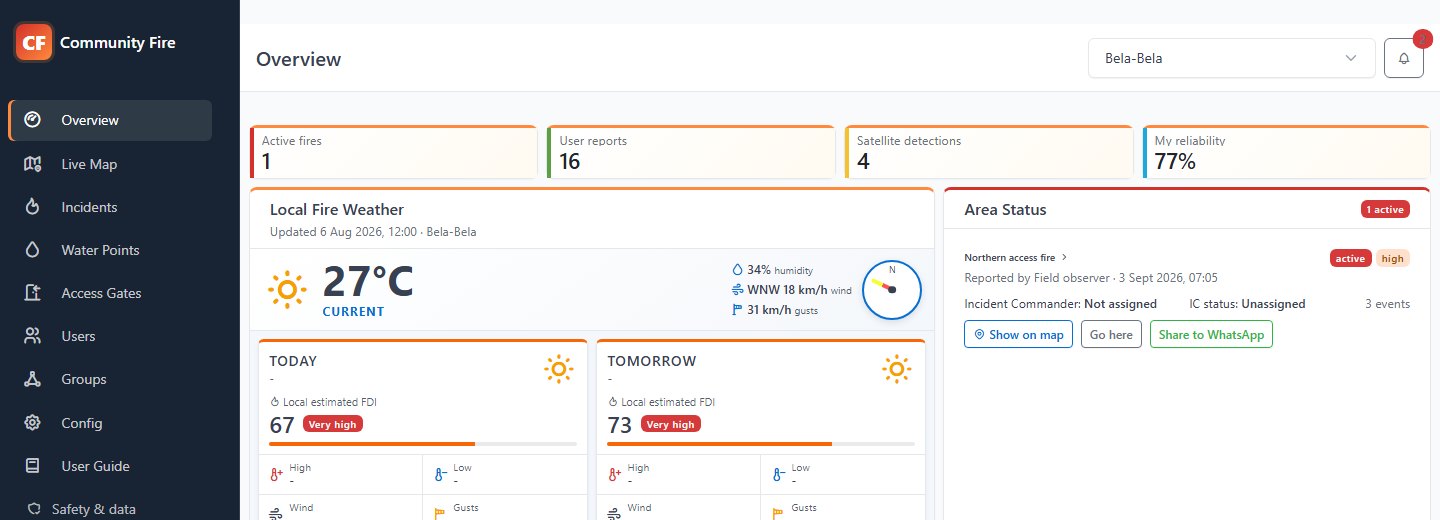
When you open the app, the Overview gives you a quick picture of what is happening in the selected boundary group. If you manage more than one area, use the group selector in the page header to move between them. Everything on the page will update to match that group.
Select Active fires to open active incidents, User reports to open all available incidents, or Satellite detections to open Live Map. A satellite detection is useful evidence, but it is not counted as an active fire until an admin converts it into a report. The reliability figure shows how consistently your own reports have been confirmed.
Local Fire Weather compares today and tomorrow using the selected area's local calendar date. The compact current panel places humidity, wind and gusts between the temperature and wind-direction compass. Forecast cards show local estimated FDI, high and low temperature, wind, gusts and humidity. Data refreshes automatically while the app is open.
The FDI is not an official SAWS regional rating or warning and does not include the preceding 21-day rainfall factor, so confirm it against local observations and recognised fire-weather guidance. Area Status lists active fires.
Select the version at the bottom of the menu to open About & updates. It shows the installed mobile version and build, with a manual update check and store instructions. A small dismissible notice appears when a newer release is announced for your installation. On the web, this shows the interface version; reload the page to receive web updates.
Functions in this menu: select boundary group; review active-fire, report, FIRMS and reliability totals; read current weather and the two-day forecast; open an active incident from Area Status.
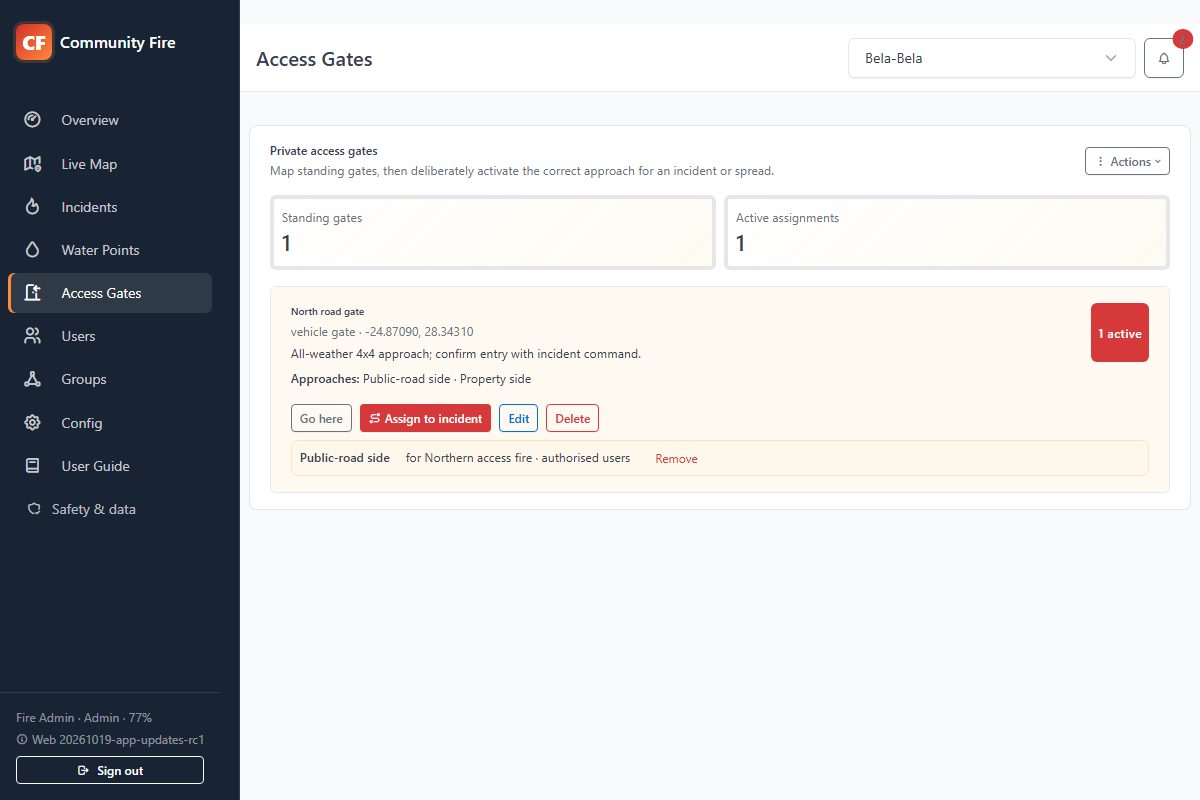
Access Gates is an administrator-only directory. Add a gate at your current GPS location or press and hold on Live Map to place it. Name both sides of the fence and adjust their approach coordinates when the safe stopping point differs from the gate itself.
Saving a standing gate never publishes it to end users. Choose Assign to incident, select the exact origin fire or spread, confirm the approach side, and decide whether it remains admin-only or is shared with users already authorised for that active incident.
Users receive only the active approach assignment—not the private gate directory or operational notes. Removing the assignment or closing the incident removes it from ordinary operational views. Confirm every route through established incident communications.
Functions in this menu: add at device/map location; edit or drag a private gate; maintain named inside/outside approach points; assign a gate to an active incident or spread; select audience; navigate to the approved approach; revoke an assignment; delete a gate.
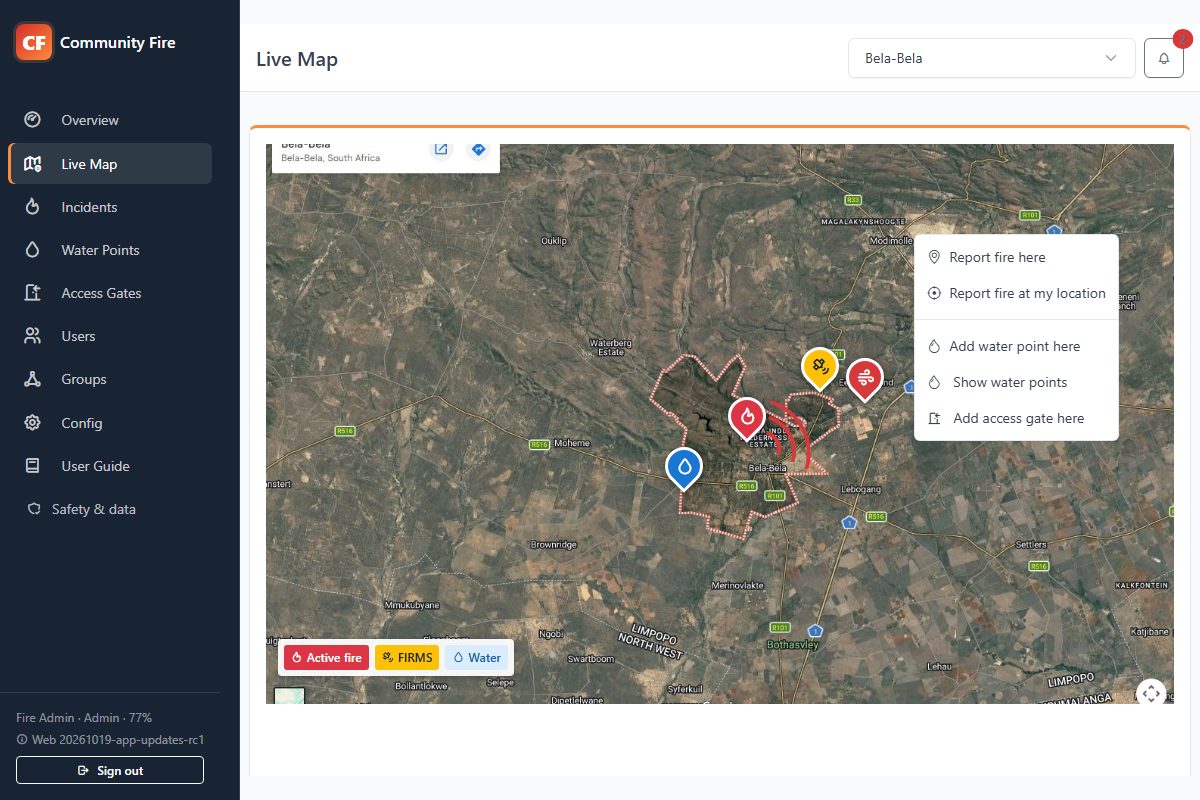
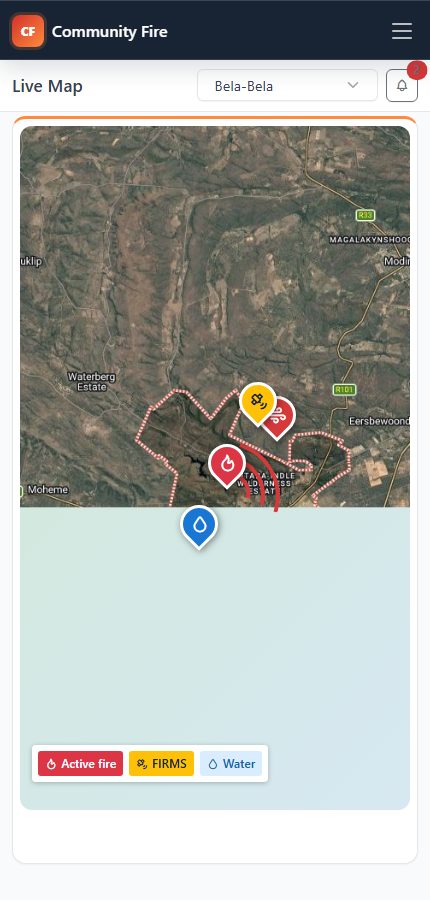
Think of Live Map as the operational view of the selected area. You can pan, zoom, change the map style, or enter full screen with the normal Google Maps controls. The red outline shows the actual group boundary. Use the Centre on selected boundary icon to fit that boundary back into view. Administrators can review FIRMS refresh details under Config → Automation; an empty map does not confirm that there is no fire.
Press and hold inside the boundary to report a fire or add a water point there; the Actions menu also supports your device location. Admin fire reports are confirmed automatically. Tap a pin to see only that pin's latest readable activity and actions. Selecting another pin closes the previous details.
Open an active fire and choose Mark fire spread. A linked red spread pin is added and saved automatically as you drag it; its signal points in the observed direction from the origin fire. Add more than one spread when different fronts develop. Each spread behaves as a linked sub-incident with its own assistance, under-control and put-out workflow, plus Go here and Share to WhatsApp. Wind direction is context only—the marker direction records the observed spread.
Authorised users can drag fire, spread and water-point pins to correct their positions without changing the current zoom. FIRMS satellite pins remain distinct from reported fires. Rejected or put-out pins and their inactive spread pins are removed from the live operational map.
Functions in this menu: pan, zoom, map style and full screen; select a pin; report at map/device location; view FIRMS; add/show water points; drag authorised pins; mark multiple spreads; request assistance; update spread status; navigate and share.
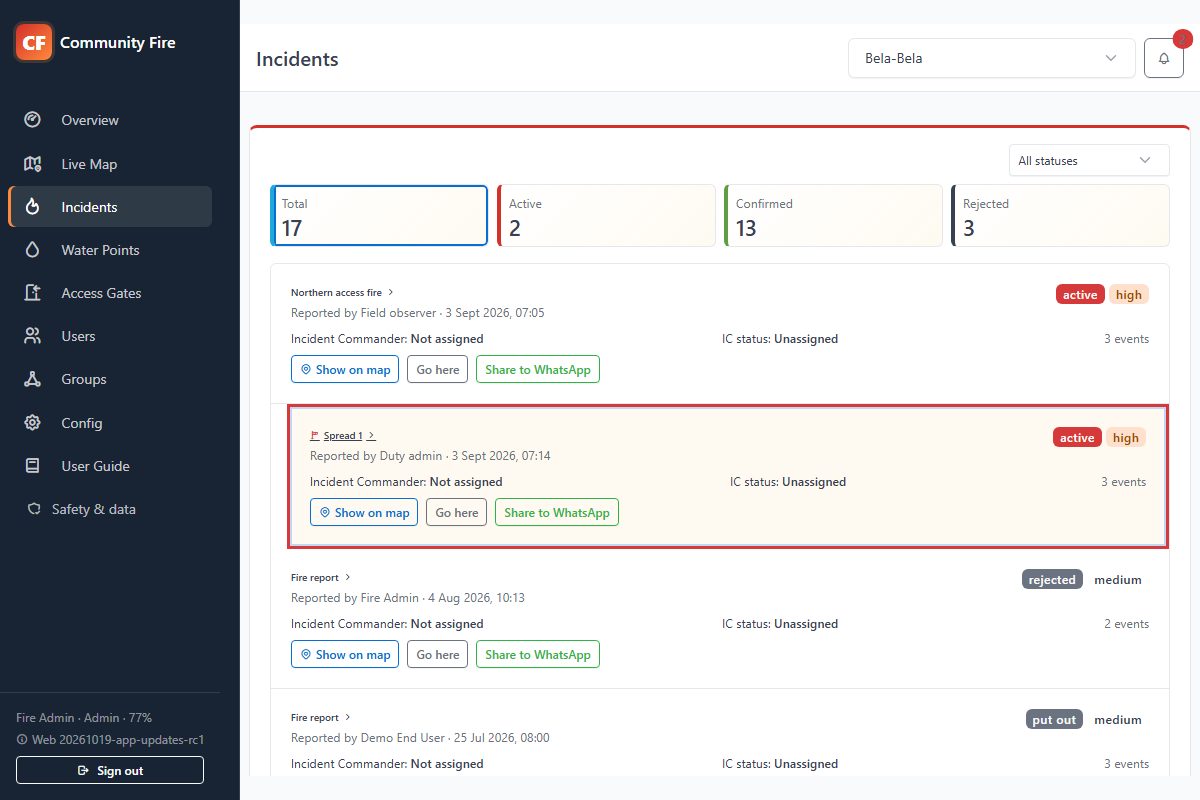
The Incidents page opens with the Active filter selected, so your immediate workload is shown first. Each compact incident row gives you the current status, severity, assigned Incident Commander and number of recorded events without making you scan the full history.
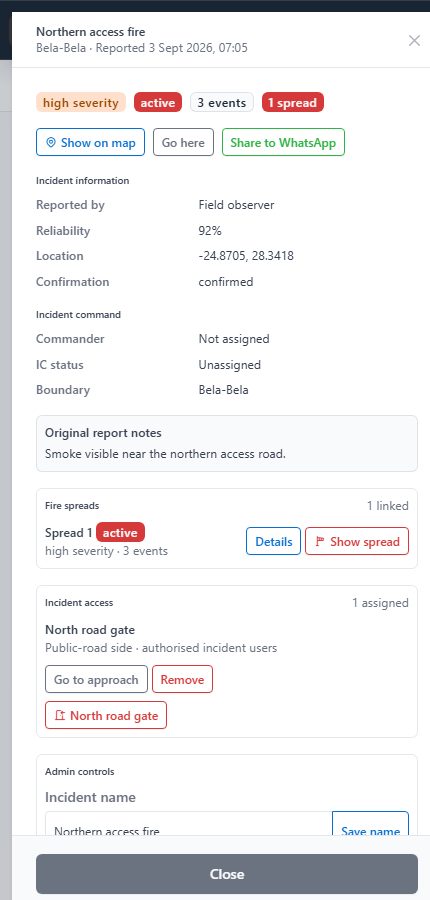
Select an incident card to open its details. The detail window brings the original report, coordinates, reporter reliability and event history together. This is also where an admin confirms or rejects the report. That decision contributes to the reporter's reliability score. The card's map, navigation and sharing controls work separately.
You can change the severity as conditions develop, request assistance, mark the fire under control, or put it out. An eligible admin can be assigned as Incident Commander and tracked from Assigned to On route, On site and Stood down.
Each spread is logged as a complete child incident linked to its origin fire. The origin shows the spread count and shortcuts to each spread. Open a spread to manage its severity, assistance, status, commander, comments, navigation, sharing and event history independently while preserving the relationship to the main incident.
Photos and short videos supplied with the report appear in the incident details. Open them only for incident response, and remove unsuitable or unnecessary media. Every upload, view and removal is audited, and files expire according to the community retention policy.
Use the comment field for operational updates that do not change the formal status. Status changes, severity changes, commander updates, spread movements and comments are timestamped in the event history. Short success and warning notices disappear automatically so they do not cover the working page.
Functions in this menu: filter and open incidents; confirm or reject reports; manage severity, assistance and lifecycle status; assign and track a commander; review media and reporter reliability; add comments; review event history; count, open and fully manage linked spreads; navigate and share.
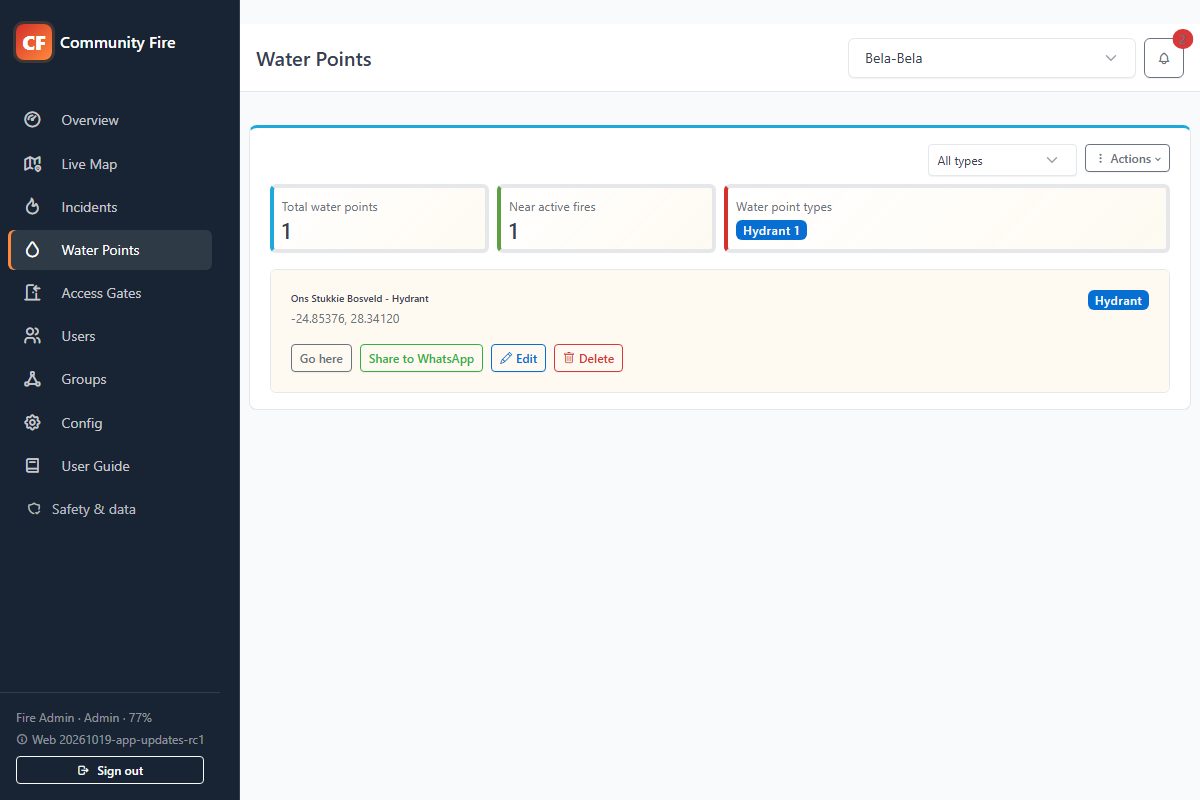
Water Points is the shared directory of usable water sources in the selected area. The summary tells you how many are recorded, how many are close enough to an active fire to be useful, and which types are available. Use the type filter when you specifically need a dam, hydrant, borehole, tank or another source.
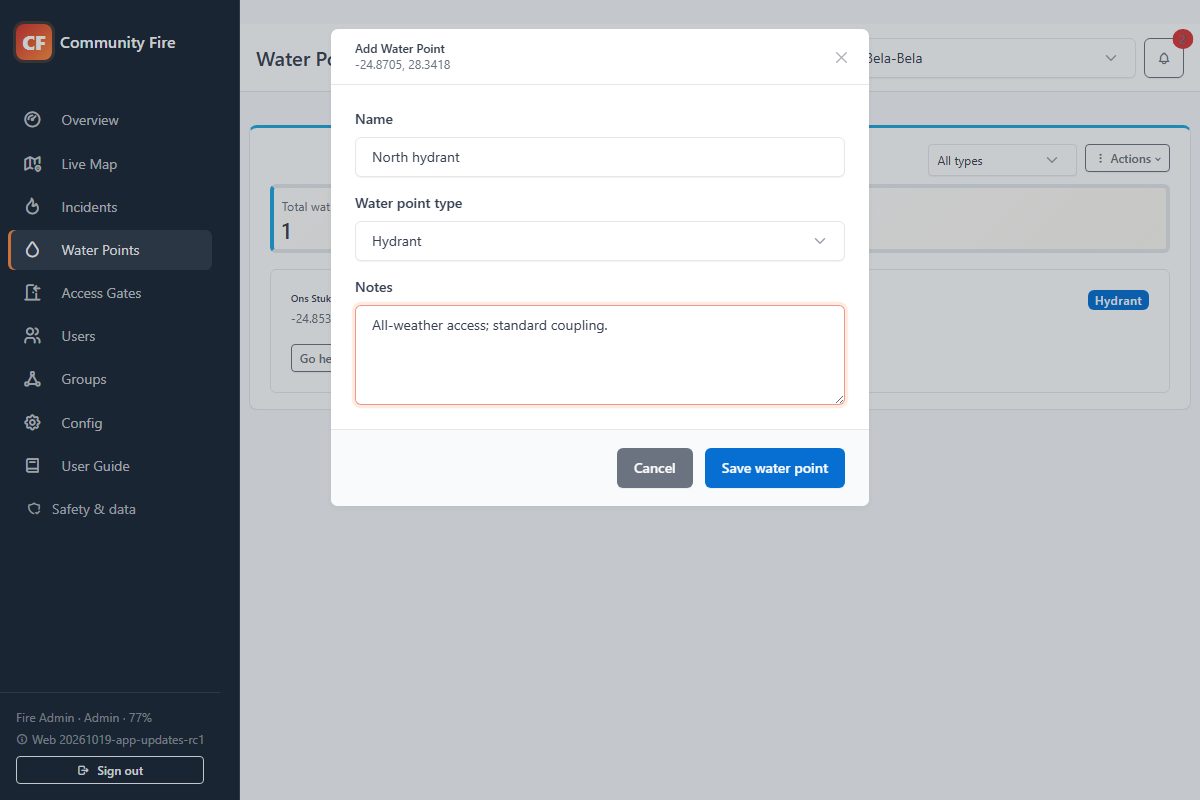
Open Actions to add a point at your current location or display every water point on the live map. Give a new point a name that responders will recognize, choose the correct type, and use the notes for practical details such as gate access, capacity, pump fittings or a contact person.
Each entry has Go here for device navigation and Share to WhatsApp for sending the location. As an admin, you can edit, delete or drag any water point in the group; saving or moving it keeps the map on the current focus area.
Functions in this menu: view summaries; filter by type; add at device/map location; show all on map; edit, drag or delete authorised points; navigate and share.
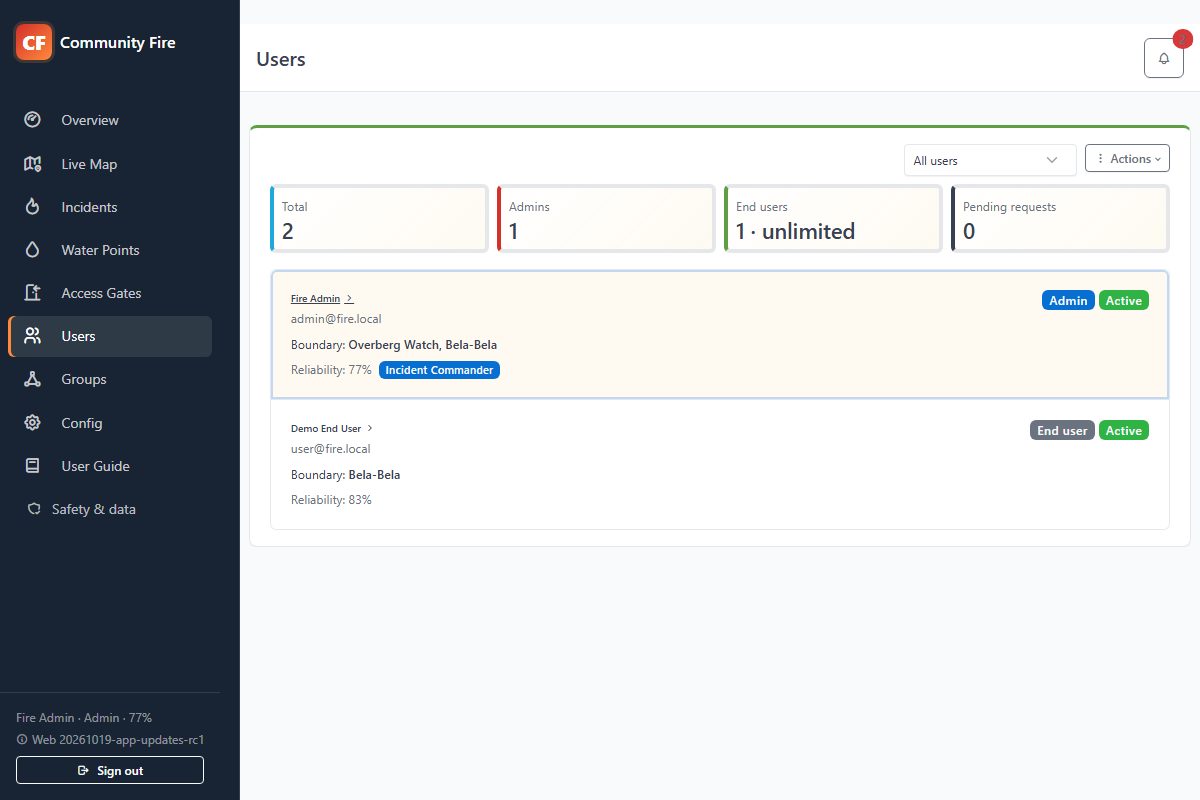
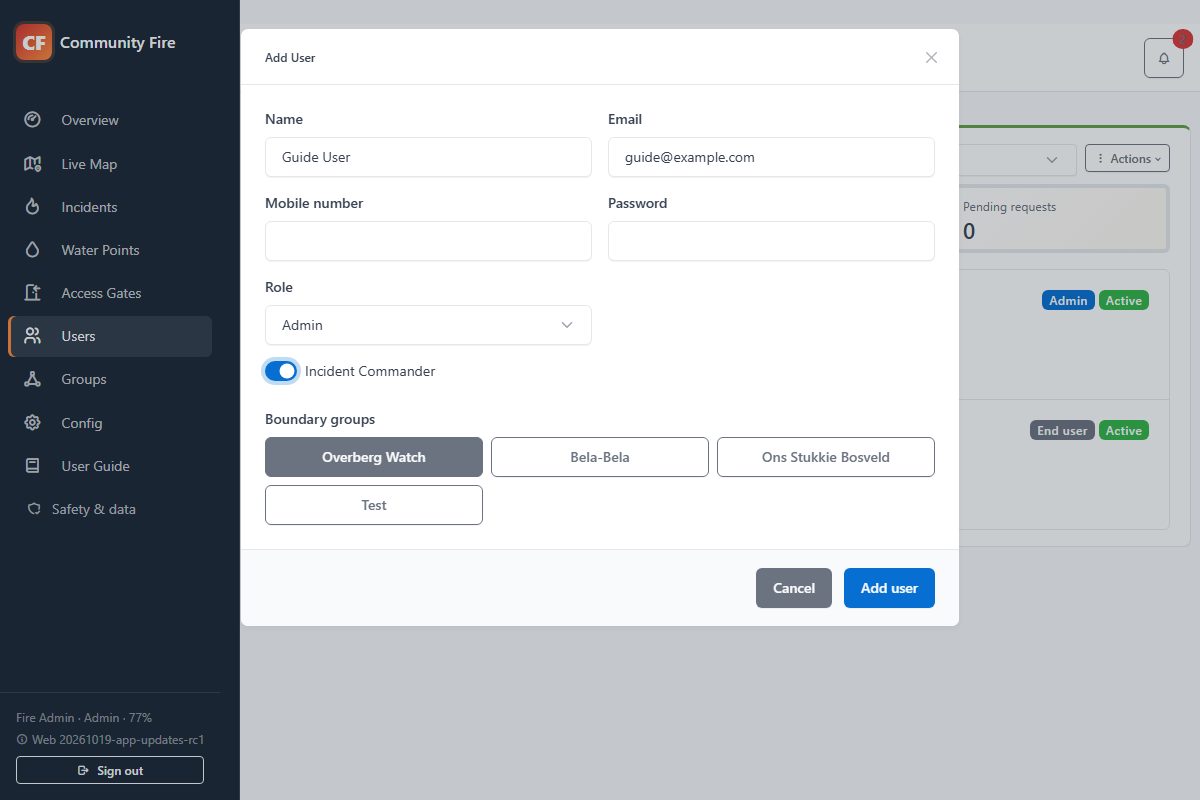
The Users page is where access to the app is controlled. The figures at the top separate admins, end users and Incident Commanders, while the filter helps you find a particular role or review inactive accounts.
When you add a person, choose whether the account is an admin or an end user and link it to the boundary groups that person should see. End users only receive data for their linked groups. If an admin is available to lead incidents, enable the Incident Commander option so that person appears in the assignment list.
Select a user card later to change the role, group membership, commander eligibility or active state. The reliability value shown on the user record is built from the admin confirmation history of that user's fire reports.
Functions in this menu: filter users; add and edit accounts; set admin/end-user role; assign boundary access; enable commander eligibility; activate/deactivate users; review reliability; process registration requests.
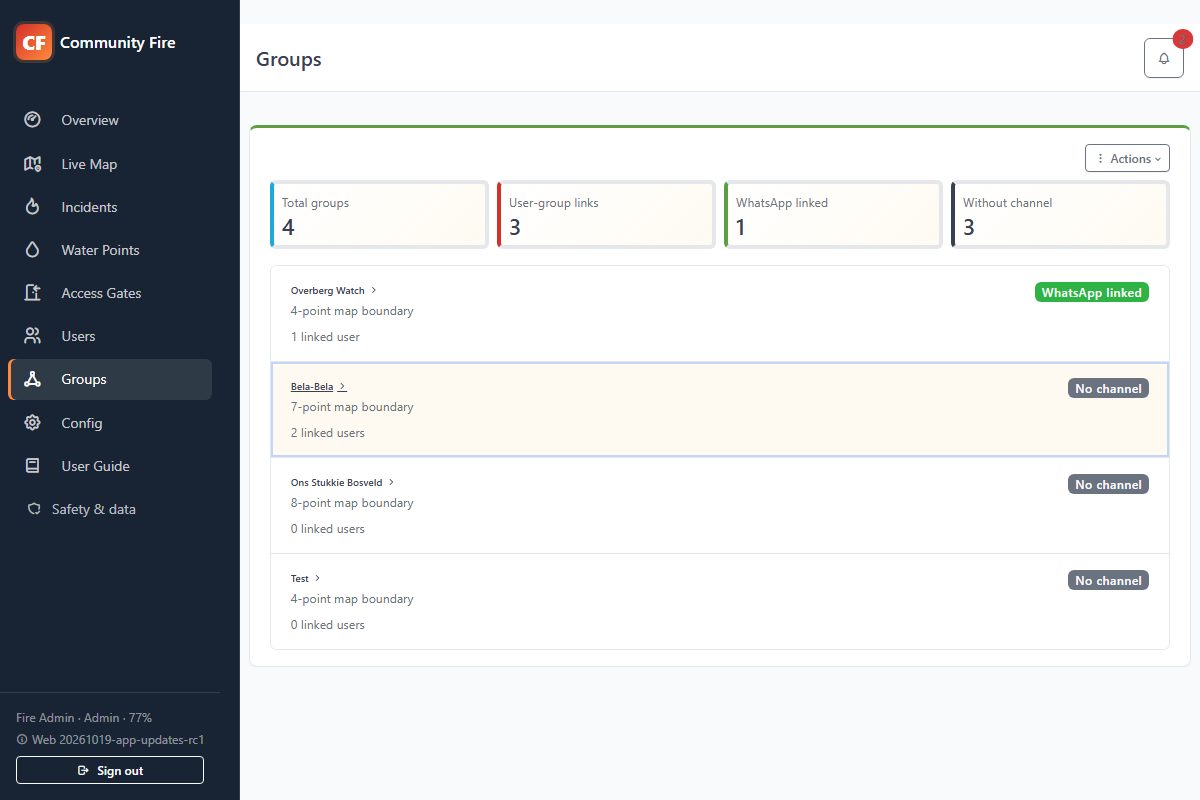
A boundary group ties together an operating area, its users and its alert channel. The Groups page shows how many users are linked to each group and whether a WhatsApp channel has been configured.
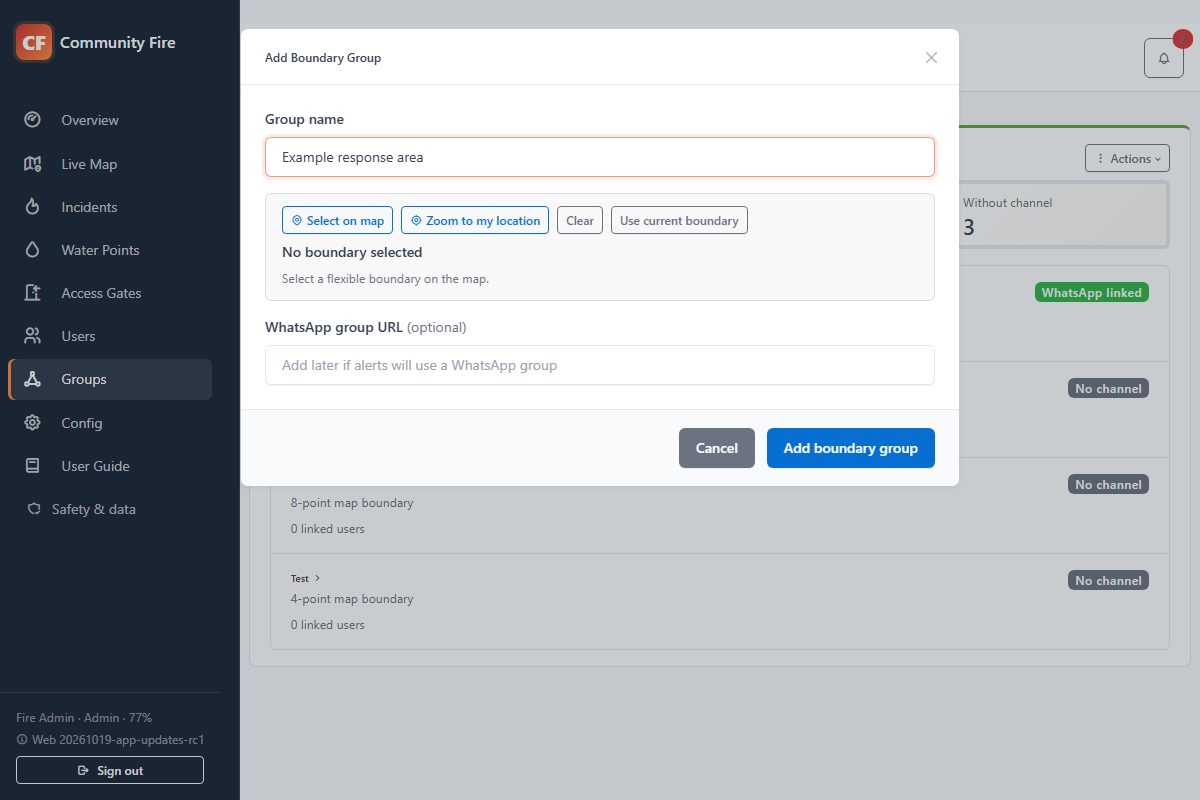
Use Actions to add a group, or select a boundary-group card to change an existing one. Give the area a clear name and add the WhatsApp group URL when that channel is ready.
If this is a new community with no boundaries yet, the app opens this setup for you. Use Zoom to my location to move the map near you without saving your position. To define the operating area, choose Select on map, move and zoom until the area is clear, choose Add points, and trace the boundary. After at least three points, select Use boundary and return to save the group.
You do not need to calculate a separate FIRMS rectangle. The app keeps the flexible polygon for accurate map checks and derives the FIRMS request coordinates in the background.
Functions in this menu: select, add and edit groups; define polygon boundaries; zoom to device location; manage user membership; set the group's WhatsApp link; review FIRMS coverage derived from the boundary.
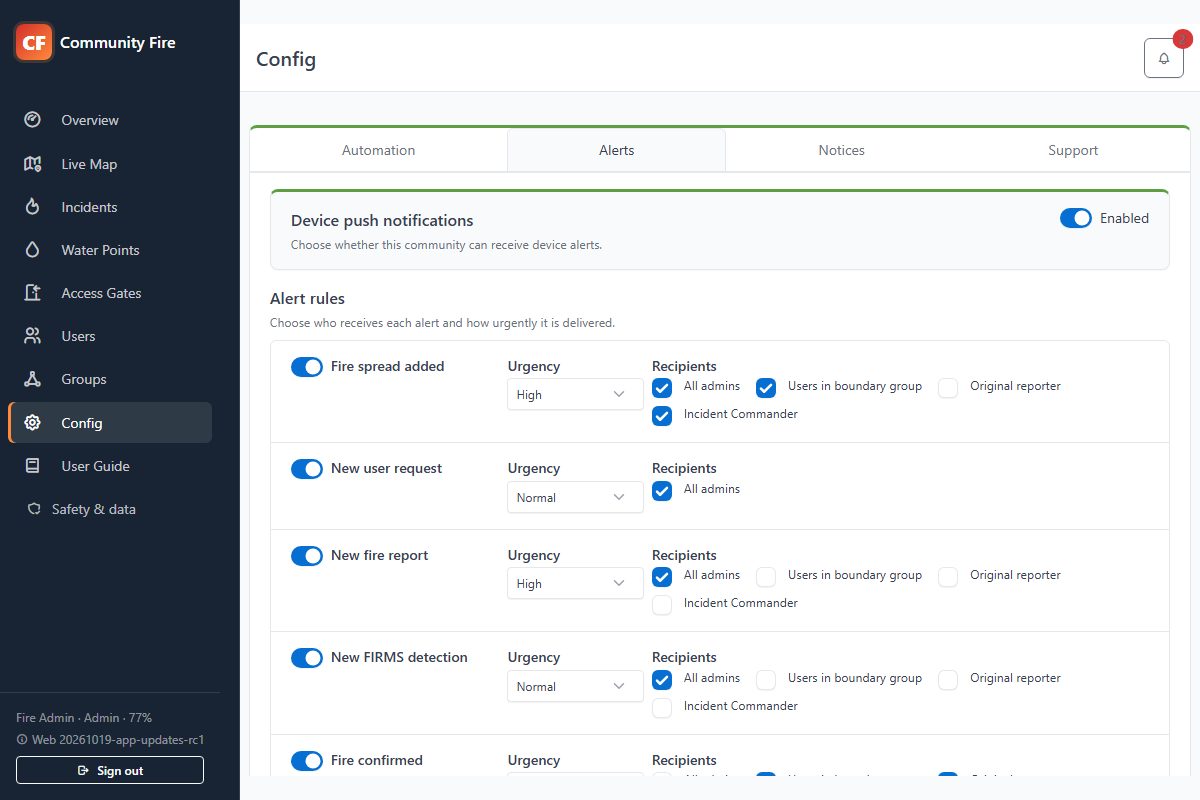
Config contains settings that apply to the whole installation, so it is not tied to the group selector. NASA FIRMS credentials, source policy and history policy are platform-managed in Subscription Manager and delivered through its authenticated relay; they are not tenant-editable. Google Maps and Firebase credentials are also managed centrally.
The Automation tab shows FIRMS refresh status for the selected boundary, including the last attempt, last successful refresh and any retained-data warning. It also controls how often weather and FDI data refresh. It also sets the distance within which water points become visible near an active fire. Entering 0 disables the relevant timer or radius behavior.
The Alerts tab controls device notifications. Community admins decide who should receive each type of alert and how urgent it should be. The choices cover admins, users in the affected boundary, the original reporter and the assigned Incident Commander. Choose Save configuration once you have finished making changes.
Functions in this menu: review platform service status; set weather/FDI/FIRMS refresh schedules; set nearby-water radius; configure notification audiences and urgency; manage announcements; save installation-wide settings.
New members start on the login page with your community code. After the code is accepted, they choose the boundary groups they need and submit an access request. Open Registration requests from Users, check the person and requested groups, then approve or decline the request. Approval sends the account setup link and an in-app, push, or email update where available.
Use Community access to rotate the join code, confirm the first-line support contact, and review requests from existing users who need another boundary group. Share the code privately with legitimate community members; rotate it if it has been posted publicly.
Announcements are short, time-bounded messages shown in the signed-in banner. Add them from Config when everyone needs to know about maintenance, an exercise, access constraints, or another community-wide matter. Choose urgency carefully and disable an old message instead of leaving it active.
The Subscription section in Community access shows the current package and renewal state. You can open Paystack's secure payment-management page, request an upgrade or renewal-time downgrade, or confirm cancellation. Cancellation stops renewal and later makes the tenant read-only; it does not immediately erase the domain, incidents, or SQLite database.
Functions in this menu: approve/decline registrations and boundary requests; rotate the community code; maintain support details; publish/disable announcements; review subscription and renewal; open secure payment management; request plan changes or cancellation.
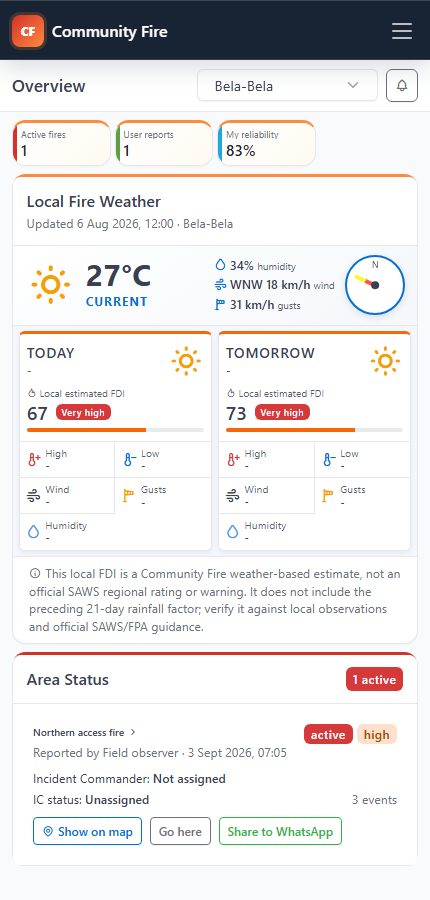
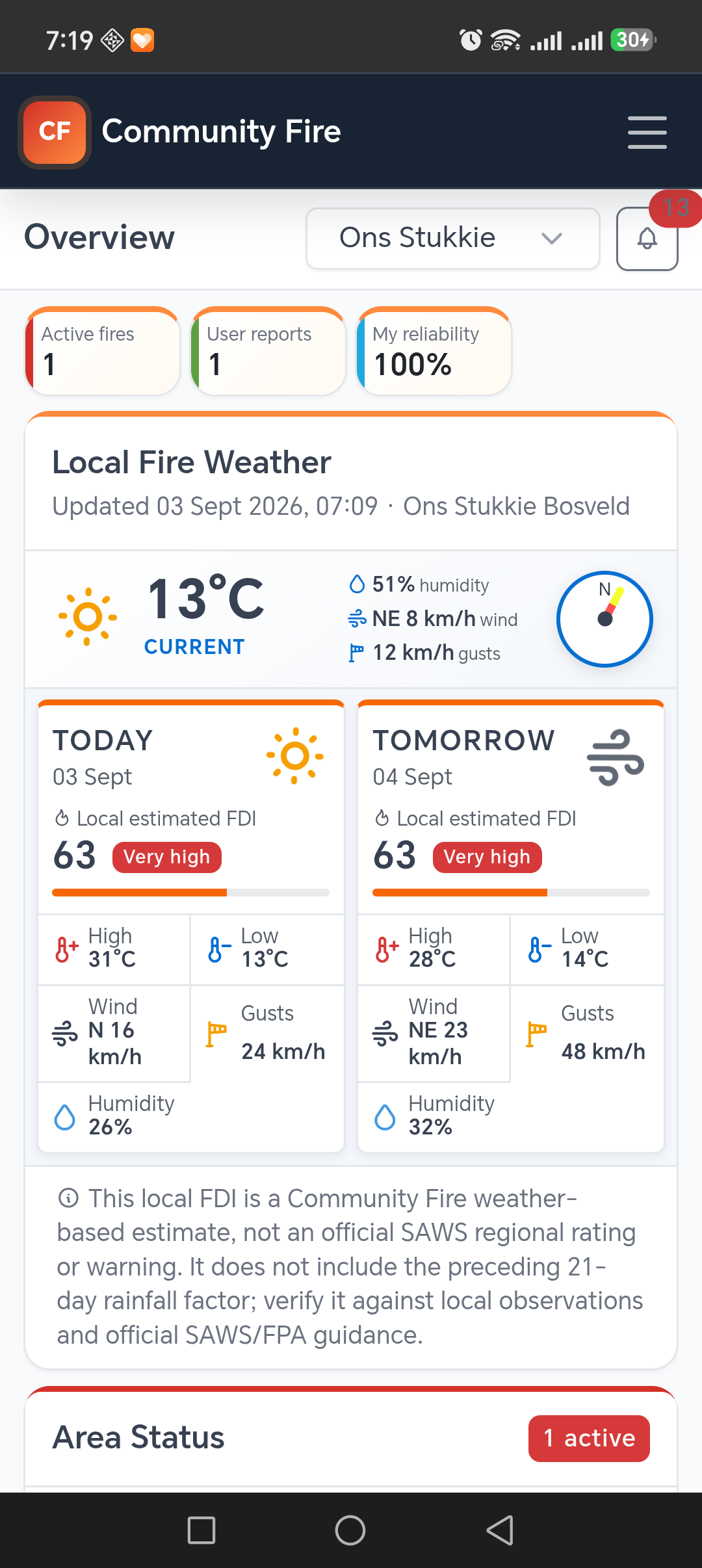
The Overview is your starting point. It shows information for the boundary group selected in the page header. If you belong to more than one group, changing that selection updates the incidents, weather and map data to the new area.
The top figures show how many fires are currently active, how many reports have been recorded and your reliability score. Reliability is based on how often admins confirm or reject the fire reports you submit, so careful locations and useful notes make a difference over time.
Before travelling or responding, compare today and tomorrow across local estimated FDI, high and low temperature, wind, gusts and humidity. Today follows the area's local calendar date; current humidity, wind and gusts sit between the temperature and compass. The display refreshes automatically while open.
This is not an official SAWS regional rating or warning: treat it as local planning context and confirm unusual or dangerous readings through your community's recognised fire-weather channels. Area Status shows fires that are still active.
Functions in this menu: select a linked boundary group; review active-fire, report and reliability totals; read current weather and two-day FDI forecast; open an active incident from Area Status.
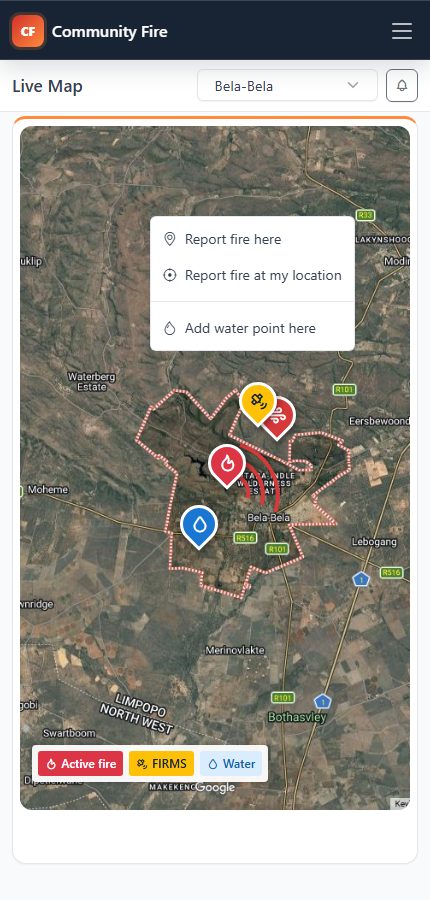
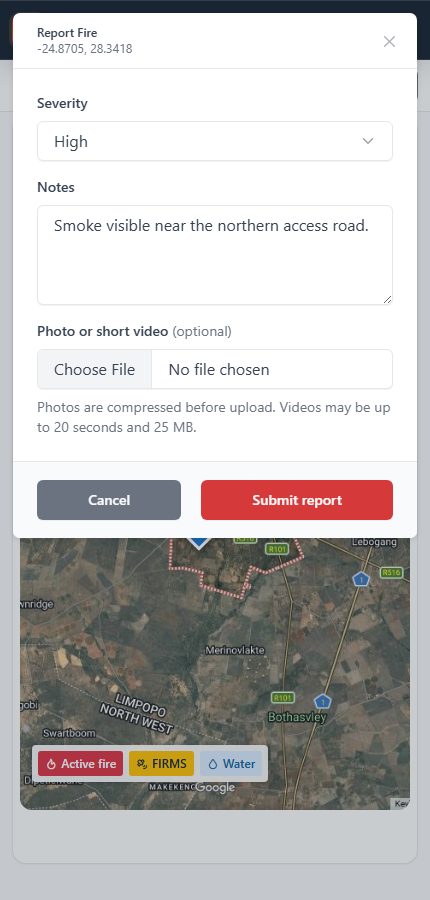
Open Live Map when you need to report what you can see on the ground. Move the map until the location is clear, then press and hold the correct point inside the red boundary. Choose Report fire here, or use Report fire at my location when you are physically at the scene.
The report form asks for severity and notes. Use the notes to tell the admin what the map cannot show, such as the direction of smoke, access-road conditions, how quickly the fire is spreading, or whether help is already needed.
You may add a photo or video of up to 20 seconds when it will help the admin assess the report. The app compresses photos before upload. Only share media you have permission to provide, keep people and private property out of frame where possible, and tick the consent box before submitting.
Check that the selected position is correct before submitting. Cancelling removes the temporary fire pin. After submission, your report appears in Incidents for admin review; the open app refreshes incident and map changes automatically. A confirmation improves the evidence behind your reliability score, while a rejection is also recorded.
Functions in this menu: report at a selected map point or device location; set severity; add notes; attach an optional consented photo or short video; cancel safely; submit for admin confirmation.
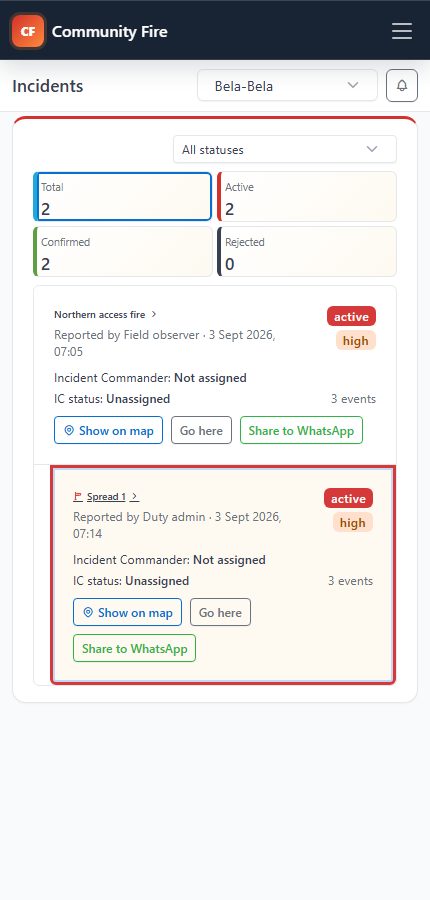
Incidents is intentionally limited to confirmed fires that are still operationally active for your linked boundary group. Pending, rejected and put-out incidents—and their location data—are not available to end users. When an incident becomes inactive, it disappears from the list and live map.
Select an incident card to read the current status, original notes, commander information, latest activity and any active linked spread fronts. The card's map, navigation and sharing controls work separately. The open app refreshes changes automatically, so an admin confirmation, spread or status update should appear without opening a notification first.
Use Go here for device navigation. Share to WhatsApp creates a location message for an authorised recipient. Spread pins offer the same navigation, sharing and readable status details while remaining linked to the origin incident.
Functions in this menu: view confirmed active incidents and spreads; open current details; review status, assistance and commander; navigate; share to WhatsApp.
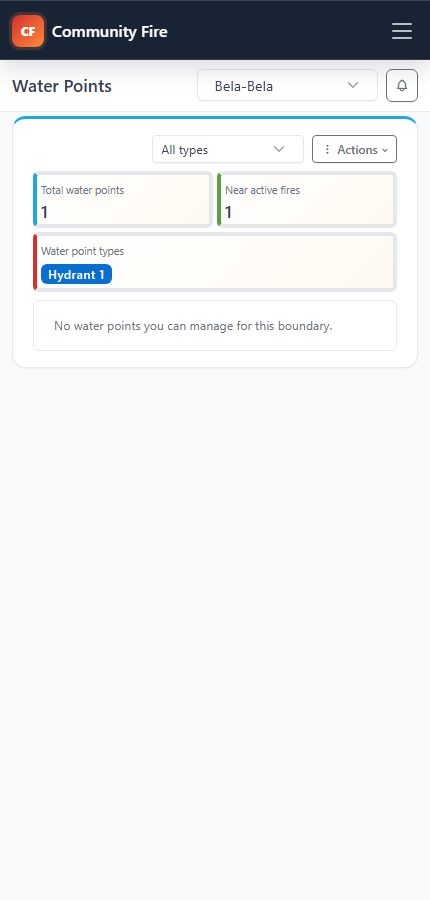
The Water Points page helps you find practical water sources in the selected area. Use the type filter when a responder needs a particular source, such as a hydrant, dam, tank or borehole. The summary also shows which points are close to an active fire.
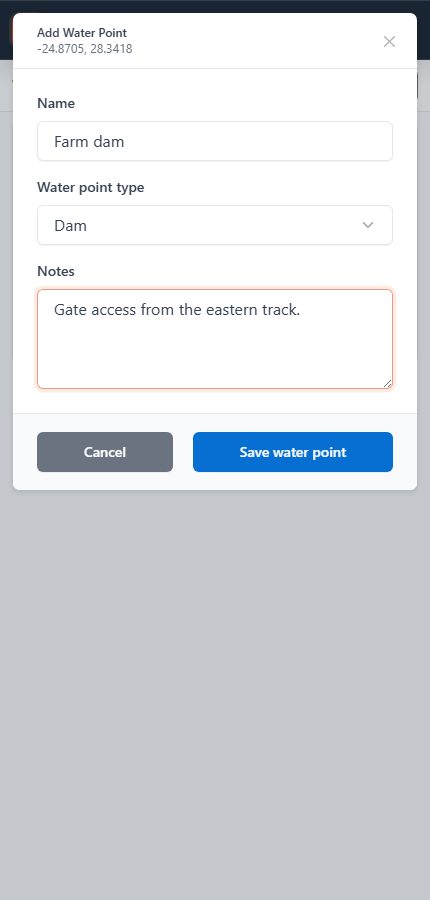
To record a new source where you are standing, open Actions and choose Add water point at my location. You can also press and hold a position on Live Map and add the point there. Give it a recognizable name and include access, capacity or fitting details that could save time during a response.
You can edit, drag or delete the water points you created, while admins can maintain the full list. Each point also provides Go here for navigation and Share to WhatsApp when someone else needs the location.
Functions in this menu: view summaries; filter types; add at device/map location; show on live map; edit, drag or delete your points; navigate and share.
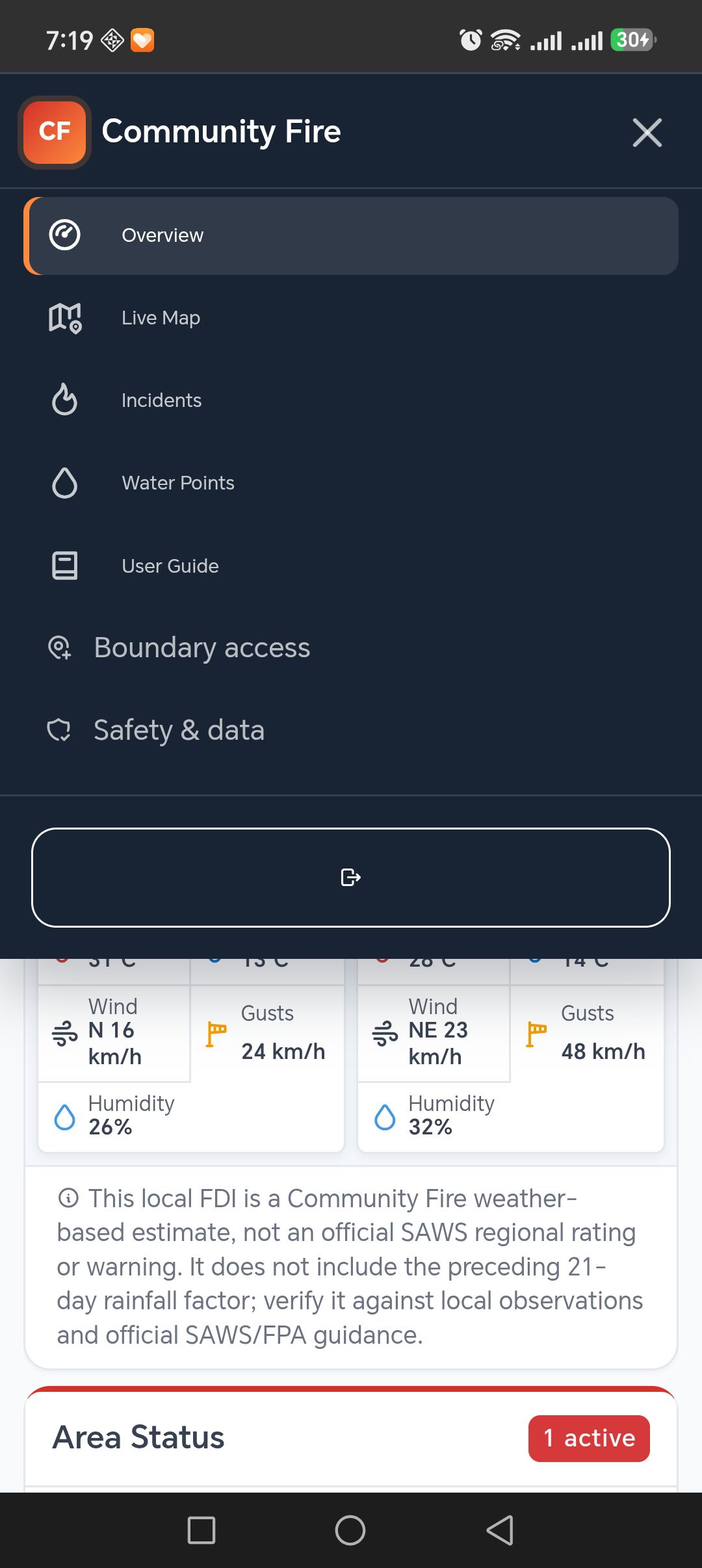
Your community admin supplies the community code used on the login page. Enter it under Request access, choose the boundary groups you need, provide your details, and choose a password. When approved, open the app and sign in with that email and password. If you already have an account and need another area, use Boundary access in the menu instead of registering again.
Device alerts are enabled from the notification control after your browser or phone grants permission. Tapping an incident alert opens that incident in the app. The scrolling announcement banner carries messages from your community admins; you can pause or dismiss it without disabling urgent device notifications.
Select the version at the bottom of the menu to open About & updates. View your installed mobile version and build, check for an announced update, and follow the Google Play or TestFlight/App Store instructions. You can dismiss an update notice for this session. On the web, reload the page to receive updates.
For account, access, or app problems, use the first-line support details shown in Login help. The app does not replace emergency calls, radio procedures, or instructions from responders. If a situation is urgent, use your community's established emergency channels first.
Functions in this menu: sign in or reset password; request initial/additional boundary access; enable notifications; open incident alerts; pause/dismiss announcements; view login help/support; sign out.